
Few experiences are as frustrating as sitting down to watch live television, a major sporting event, or a movie, only to be met by a frozen screen, stuttering audio, or a endlessly spinning loading icon. When IPTV streams buffer repeatedly on an Amazon Fire TV Stick, it is easy to assume that either your home internet connection is slow or your service provider is failing.
However, live IPTV streaming relies on a real-time transport chain. Unlike on-demand platforms like Netflix or YouTube—which pre-buffer several minutes of compressed video directly into your device’s memory—live IPTV broadcasts deliver continuous data packets with minimal latency buffers. A minor interruption at any point along this path can stall video playback.
The issue may stem from an unstable home Wi-Fi signal, saturated device RAM, misconfigured hardware decoders in your media player app, or temporary routing issues on the server side. Randomly altering settings or repeatedly restarting your router without a plan can waste time.
This guide provides a systematic, step-by-step framework to isolate the precise bottleneck causing IPTV buffering on your Firestick and restore smooth playback.
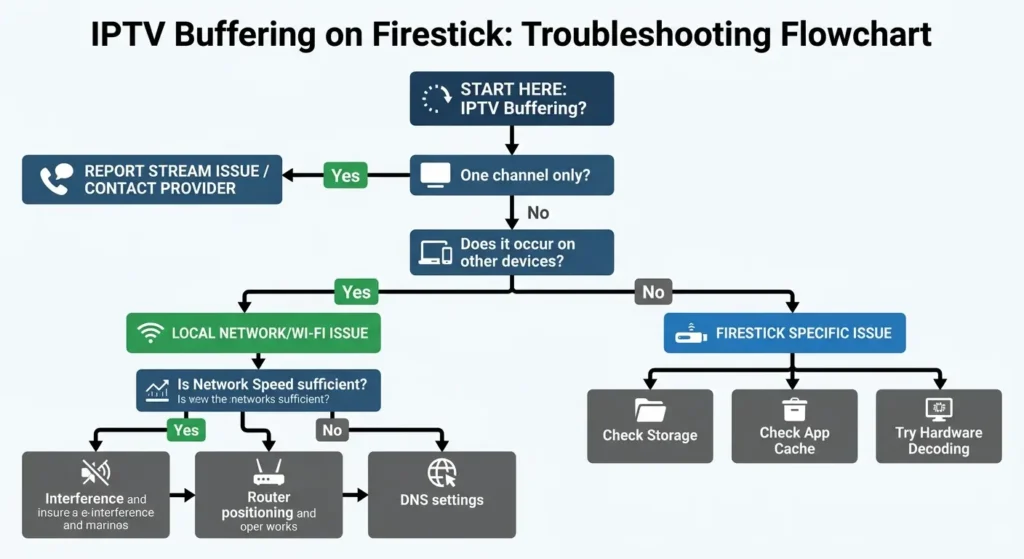
Why Does IPTV Keep Buffering on Firestick?
To resolve playback issues effectively, it helps to understand the underlying technical causes. IPTV buffering on Amazon Fire TV devices generally falls into five distinct categories:
+-----------------------------------------------------------------------------------+

|                            THE IPTV STREAMING CHAIN                               |
|                                                                                   |
|  [IPTV Server] --> [ISP Routing] --> [Home Router] --> [Firestick] --> [Player]   |
|         |                 |                 |              |              |       |
|   Server Load       Throttling /       Wi-Fi Signal/    Low RAM/       Decoder/   |
|   & Bitrate          Packet Loss       Interference    Overheating    Cache Issue |
+-----------------------------------------------------------------------------------+- Local Network Instability: High network speed alone does not guarantee smooth live streaming. Wireless signal interference, high packet loss, latency spikes (jitter), or channel congestion on the 2.4 GHz spectrum frequently interrupt data transmission.
- Device Hardware Constraints: Fire TV Sticks are compact media players with limited internal storage and RAM. Background app processes, residual cache files, or thermal throttling under heavy processing loads can impede the device’s ability to decode live stream video continuously.
- Application & Media Player Configuration: IPTV player applications rely on specific software or hardware decoders (such as HW, HW+, or SW decoding) to render video streams. Incorrect output formats, misconfigured network buffers, or corrupt app caches can produce stuttering, audio-video desync, or infinite buffering loops.
- Stream-Specific Bitrate & Server Load: High-definition (HD) and 4K Ultra HD live streams carry significantly higher bitrates. If a specific stream’s source server experiences temporary load spikes—such as during high-profile live sports broadcasts—the feed may stall regardless of your local internet quality.
- ISP Management & Content Routing: Internet Service Providers periodically alter routing paths, resulting in packet drop-offs along the path between your home network and external streaming servers.
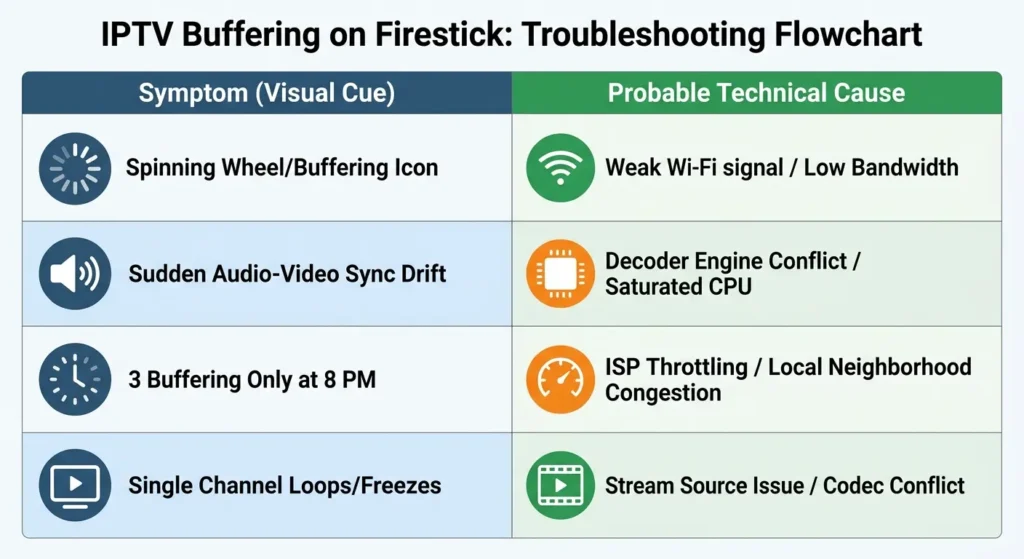
Diagnostic Matrix: Symptoms vs. Likely Causes
Before modifying your settings, compare your current streaming issue against this diagnostic matrix to identify the most probable cause:
| Observed Symptom | Primary Suspect | Recommended First Step |
| Every channel buffers across all installed apps | Home network speed, Wi-Fi signal drop, or system-wide Firestick memory overload | Run a Firestick network test and restart both router and Firestick. |
| Only one specific channel freezes or fails to load | Stream-specific source server issue or broken channel link | Test live TV vs. VOD; switch stream format (TS to M3U8) if supported. |
| Buffering occurs strictly during peak hours (7 PM – 11 PM) | ISP bandwidth management or local neighborhood node congestion | Test connection jitter/packet loss; evaluate alternate DNS or direct Ethernet. |
| Video stutters, drops frames, or plays audio with black screen | Media player hardware decoder conflict (HW vs. SW) | Toggle video decoder settings inside your player app settings. |
| Stream runs smoothly for 10 minutes, then repeatedly stutters | Firestick memory leak, saturated app cache, or thermal throttling | Force stop the app, clear app cache, and verify Firestick airflow. |
Step 1: Determine Whether the Problem Affects One Channel or All Channels
Isolating whether the issue is systemic or limited to a single feed prevents unnecessary network reconfigurations when the problem lies elsewhere.
                  [Does IPTV Buffer?]
                           |
             +-------------+-------------+

             |                           |
    [All Channels Buffer]       [Only One Channel Buffers]

             |                           |
   Check Home Network,          Source Stream Issue.
   Firestick Storage, or        Report to Provider or
   App Decoder Settings         Switch Stream Protocol
1. Test Multiple Channels Across Categories
Switch from a live high-definition broadcast to a standard-definition (SD) channel or an On-Demand (VOD) movie.
- If VOD and SD channels play cleanly but live 1080p/4K channels freeze: Your system is likely bottlenecked by stream bitrate, wireless bandwidth limits, or hardware video decoding capacity.
- If every single channel and video freezes universally: The issue is rooted in your local Firestick environment, app configuration, or overall home connection.
2. Test Playback on a Secondary Device
Install your stream playlist or player application on a secondary device connected to the same home network—such as an Android tablet, smartphone, or laptop.
- If playback is smooth on your secondary device but buffers on the Firestick: The issue is isolated to the Firestick hardware, its Wi-Fi reception, or its installed application settings.
- If playback buffers identically across all local devices: The root cause is your home network, local router environment, or provider-side stream distribution.
Step 2: Test Internet Speed and Connection Stability
A common point of confusion for users experiencing IPTV buffering is: “Why does IPTV buffer when my internet speed test shows over 100 Mbps?”
On-demand streaming services like Netflix or Prime Video buffer minutes of video in advance. If your connection drops for five seconds, playback continues unaffected while the application quietly reconnects and fills the buffer.
Live IPTV streams deliver real-time video feeds with minimal buffer margins. If your connection suffers from packet loss or high jitter (latency variance), the player exhausts its tiny real-time buffer instantly, causing the video frame to freeze while it waits for missing data packets.
Continuous Live Stream:  [Packet 1] --> [Packet 2] --> [DROPPED PACKET 3] --> [Packet 4]
Resulting Playback:      [Smooth]   --> [Smooth]   --> [ BUFFERING / FREEZE ] --> [Resumes]
Speed Requirements vs. Bitrate Reality
While baseline internet guidelines offer a general starting point, real-world live streaming requirements depend heavily on stream compression and stability:
- Standard Definition (SD): Requires ~5–10 Mbps stable download speed.
- High Definition (HD 1080p): Requires ~15–25 Mbps stable download speed.
- 4K Ultra HD / High-FPS Live Sports: Requires ~40–50+ Mbps of consistent, low-jitter throughput.
Note: These speed figures represent dedicated bandwidth for the stream itself. If other household devices are simultaneously downloading files, playing online games, or streaming 4K video on the same local network, your total required household bandwidth must scale accordingly.
How to Run an Accurate Network Diagnostic on Firestick
Relying on a general speed test taken on a desktop computer in another room does not reflect the signal quality reaching your Firestick behind your television.
Fire TV Home Screen
 └── Settings (Gear Icon)
      └── Network
           └── Highlight Connected Wi-Fi
                └── Press Play/Pause Button on Remote
└── Select "Run Speed Test"- Navigate to Settings (gear icon) on your Firestick home dashboard.
- Select Network.
- Highlight your active Wi-Fi connection and press the Play/Pause button on your Firestick remote to launch the built-in Connection Status tool.
- Select Run Speed Test.
- For a more detailed breakdown of jitter and continuous speed stability, download a dedicated network analytics utility such as Analiti directly from the Amazon Appstore, or open the built-in Amazon Silk Browser and navigate to fast.com.
If your speed drops significantly during testing or displays fluctuating throughput readings, your local wireless signal is likely suffering from interference or attenuation.
Step 3: Improve Wi-Fi Connection or Connect via Ethernet
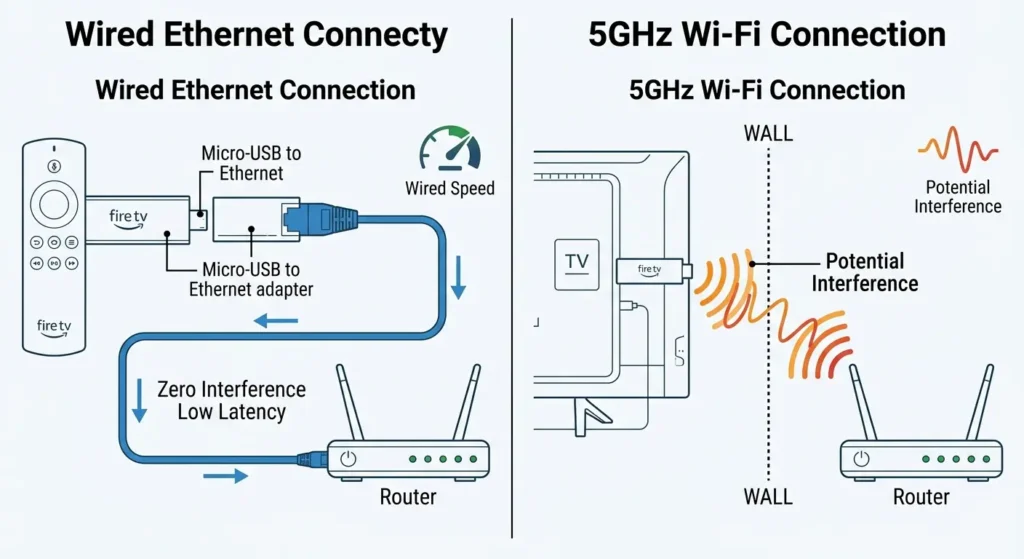
The physical position of an Amazon Fire TV Stick creates an inherent wireless challenge: it plugs directly into an HDMI port on the back of a television, placing it close to metal shielding, internal circuit boards, and rear panel display components that can disrupt Wi-Fi signals.
POOR SETUP:
[Router] ---- (Walls / Interference) ----> [TV Panel] | [Firestick Plugged Flush] (Blocked)

OPTIMIZED SETUP:
[Router] --------------------------------> [HDMI Extender] -- [Firestick Hanging Free] (Clear Signal)
1. Use the Included HDMI Extender Cable
Always connect your Firestick to your TV using the short HDMI extender cable included in the box rather than plugging the stick directly into the HDMI port flush against the television’s back panel. Hanging the Firestick slightly away from the television body reduces physical signal blockage and electromagnetic interference.
2. Switch from 2.4 GHz to the 5 GHz Wi-Fi Band
Most modern home routers broadcast dual-band wireless networks:
- 2.4 GHz Band: Offers long transmission range but lower overall throughput and high susceptibility to interference from household electronics, microwaves, and neighboring Wi-Fi routers.
- 5 GHz Band: Provides significantly higher data transfer speeds and far lower latency, though with shorter physical range through solid walls.
For live HD and 4K IPTV streaming, connect your Firestick to the 5 GHz Wi-Fi network. If your router uses a single combined SSID (Band Steering), access your router administrator portal and split the 2.4 GHz and 5 GHz networks into distinct names (e.g., HomeNetwork_5G).
3. Connect via a Wired Ethernet Adapter
To remove wireless latency, channel congestion, and signal dropouts entirely, connect your device using a wired network cable.
Because standard Fire TV Sticks lack a built-in Ethernet port, you can connect an inexpensive Micro-USB (or USB-C for newer models) Ethernet OTG Adapter.
[Wall Power Outlet] ──> [Power Cable] ──> [Ethernet Adapter] ──> [Micro-USB / USB-C] ──> [Firestick]
                                               │
[Home Router] ───────── (RJ45 CAT6 Cable) ──────┘- When to use Ethernet: If your Firestick is located far from your router, in a room separated by thick concrete walls, or in an apartment complex with dense Wi-Fi channel noise.
- Expectation check: An Ethernet adapter eliminates Wi-Fi packet loss, but it will not resolve buffering caused by low internet bandwidth, player decoding conflicts, or server-side issues.
Step 4: Restart the Firestick and Router Properly
Temporary system glitches, stagnant DNS routing tables, and accumulated background memory buffers can build up over weeks of continuous operation. A clean system reboot often resolves unexplained playback stalls.
How to Power-Cycle Home Network Hardware Correctly
1. Unplug Router & Modem Power
2. Wait 60 Seconds (Clears Capacitors & Stagnant DNS)
3. Plug in Modem --> Wait for Full Sync
4. Plug in Router --> Wait for Wi-Fi Broadcast
5. Reboot Firestick- Disconnect the power cables from both your modem and your Wi-Fi router.
- Wait a full 60 seconds to allow electrical capacitors to drain completely, clearing temporary RAM memory and resetting local IP allocations.
- Plug the modem back in first and allow its status lights to confirm an established internet connection.
- Plug in the router and wait until its wireless indicator lights turn solid.
How to Restart an Amazon Firestick
Avoid simply turning off your television screen; doing so merely puts the Firestick into a low-power sleep state without clearing active system RAM.
Fire TV Home Screen
 └── Settings (Gear Icon)
      └── My Fire TV
           └── Restart
└── Confirm "Restart"- Menu Method: Go to Settings > My Fire TV > Restart. Select Restart to confirm.
- Remote Shortcut Method: Press and hold both the Select (Center Circle) and Play/Pause buttons simultaneously on your Fire TV remote for 5 seconds until the “Your Fire TV is Powering Off” message appears.
Step 5: Check Firestick Performance and Storage
Amazon Fire TV devices operate on Android-based operating systems (Fire OS). As internal flash storage fills up, file indexing slows, virtual memory paging degrades, and media player applications struggle to maintain consistent buffer margins.
RECOMMENDED STORAGE STATE:
[=================== Used Space ===================] [ Free Space: 1.5GB+ ]
                                                       ▲
                                                       └── Critical for Buffer Paging
1. Maintain Available Storage Capacity
Check your remaining internal storage space by opening Settings > My Fire TV > About > Storage.
If your device has less than 1.5 GB of free space remaining, the system may struggle to allocate temporary streaming buffers. Free up space by:
- Uninstalling unused streaming apps, games, or utilities.
- Deleting heavy sideloaded APK installation files (.apk) sitting in your Downloads directory using file manager apps.
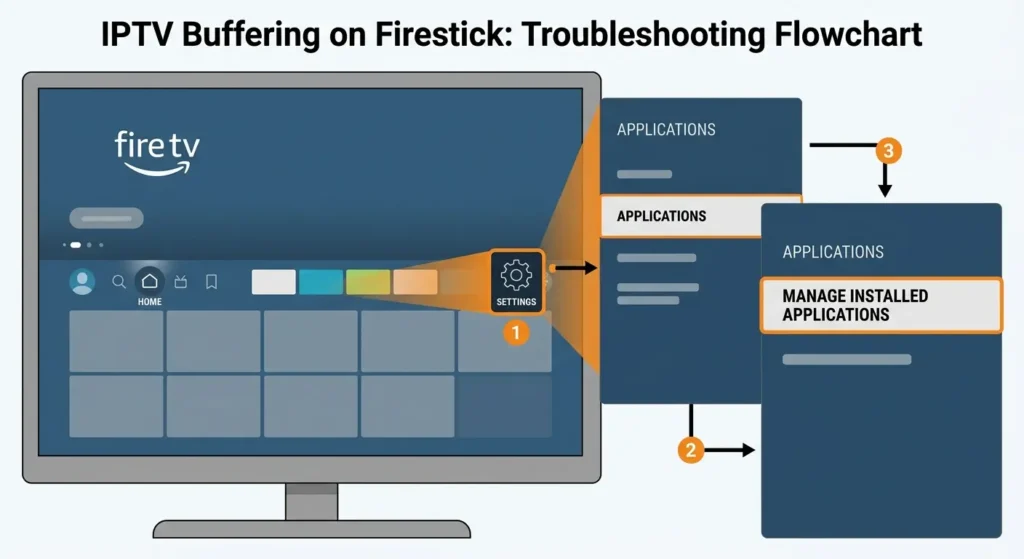
2. Clear Application Cache Files
Every time you stream live channels or browse video-on-demand content covers, your IPTV app saves temporary image tiles, stream headers, and metadata to its local cache. Over time, this cache can grow to hundreds of megabytes, slowing down app processing.
Fire TV Home Screen
 └── Settings
      └── Applications
           └── Manage Installed Applications
                └── Select IPTV Player
                     ├── Force Stop
└── Clear Cache (DO NOT select "Clear Data")- Navigate to Settings on your Firestick home screen.
- Select Applications > Manage Installed Applications.
- Scroll through the list and select your preferred IPTV media player.
- Click Force Stop to kill any active, hung background tasks.
- Click Clear Cache.
Crucial Warning: Select Clear Cache only. Clicking Clear Data will completely wipe your saved login credentials, custom playlist configurations, and app settings, requiring you to set up your player from scratch.
Step 6: Check the IPTV Player and Its Settings
Not all IPTV applications process stream data in the same way. The media playback engine inside your chosen player app plays a direct role in how smoothly streams render on your Firestick hardware.
PLAYER SETTINGS TO DIAGNOSE:
├── Stream Format Options  --> Try changing TS (MPEG-TS) to M3U8 (HLS)
├── Decoder Engine         --> Toggle between Hardware (HW) and Software (SW)
└── Buffer Size / Preload  --> Adjust from "Normal" to "High / Large"
1. Hardware Decoding (HW) vs. Software Decoding (SW)
Inside the playback options of popular applications like TiviMate, IPTV Smarters Pro, or XCIPTV, you will find settings for Video Decoder selection:
- Hardware Decoding (HW): Uses the dedicated hardware processing chips on the Firestick to decode compressed video feeds. This offers smooth, energy-efficient performance for supported stream codecs.
- Software Decoding (SW): Uses the Firestick’s CPU to process video data. This uses significantly more processing power but can work as a reliable fallback if a particular channel’s audio or video codec fails under hardware decoding.
Action Step: If a channel stutters, exhibits audio-video sync delays, or displays a black screen, open your player app’s playback settings and toggle the live video decoder from HW to SW (or HW+ if supported). Test one change at a time to determine which setting yields the best performance on your specific Firestick generation.
2. Stream Format Protocol: MPEG-TS vs. HLS (M3U8)
IPTV playlists typically stream live video feeds in one of two formats:
- MPEG-TS (Transport Stream): The standard raw broadcast stream format. It features low latency but offers minimal built-in error handling over fluctuating Wi-Fi connections.
- HLS / M3U8 (HTTP Live Streaming): Breaks video streams into short chunked files. It adapts far better to variable network speeds, making it significantly less prone to dropping frames during temporary Wi-Fi signal fluctuations.
If your player app allows changing stream output formats in the playlist settings, change the default stream format from MPEG-TS to HLS (or M3U8) to improve connection resilience.
3. Adjust Buffer Allocation Size
Some advanced IPTV players allow users to customize the buffer pre-allocation size (e.g., None, Small, Normal, Very Large).
- Setting buffer size too low (or None): Leaves zero room for micro-instabilities on your Wi-Fi network, causing immediate screen freezes whenever packet transmission drops briefly.
- Setting buffer size too large: Increases the startup load delay by several seconds when switching channels and can overload the Firestick’s limited available system RAM.
Set your player’s buffer size to Normal or Medium/Large. Avoid setting the buffer to zero or disabling pre-allocation unless explicitly directed by a specialized diagnostic requirement.
For step-by-step setup assistance, account login workflows, and playlist importing instructions for popular media players, consult our detailed Lux Player Setup Guide. To learn more about how client player software interfaces with external streaming providers, read our guide on Lux Player and IPTV Compatibility.
Step 7: Understand Buffering on 4K IPTV Streams
Streaming 4K Ultra HD content requires substantially more network bandwidth and processing performance than standard 1080p feeds. A 4K stream can transmit uncompressed or high-bitrate data at 30 to 80+ Mbps, depending on the video codec used (H.265 / HEVC vs. H.264).
4K BITRATE vs. BANDWIDTH HEADROOM:
[ 4K Stream Bitrate: ~35 Mbps ] + [ Household Overhead: ~25 Mbps ] = [ Required: 60+ Mbps ]
Key Factors Impacting 4K Stream Stability
- Codec Support & Hardware Decoding: Older generations of the Fire TV Stick (such as the standard 2nd Gen or 3rd Gen Fire TV Stick) lack native hardware acceleration for high-bitrate 4K HEVC streams. Attempting to decode 4K streams on unsupported hardware leads to heavy frame drops, extreme buffering, or app crashes. A Fire TV Stick 4K, 4K Max, or Fire TV Cube is recommended for 4K live streams.
- Sustained Bandwidth vs. Peak Bandwidth: While a quick web browser test may record a brief peak speed of 50 Mbps, 4K streaming demands uninterrupted, continuous data delivery. Brief bandwidth drops below the video feed’s native encoding rate will instantly stall playback.
- Display Protocol & Refresh Rates: Ensure your Firestick display settings under Settings > Display & Sounds > Display are set to Match Original Frame Rate: ON to prevent micro-stutter caused by mismatched panel refresh rates (e.g., 50Hz European broadcast content rendering on a 60Hz display profile).
If a 4K live channel continues to buffer despite a strong network connection, switch to the equivalent 1080p HD version of the broadcast channel. The lower bitrate requirement significantly reduces the load on both your local Wi-Fi and hardware decoders.
For a broader look at streaming high-bitrate live sports events and 4K broadcasts on Firestick devices, read our dedicated breakdown on the 2026 FIFA World Cup 4K IPTV Stream Guide.
Step 8: Troubleshoot When Your Internet Is Fine but IPTV Still Buffers
One of the most perplexing scenarios occurs when fast speed test results co-exist with constant IPTV buffering. If your download speed measures over 100 Mbps on Fast.com or Speedtest.net, but your live streams freeze continuously, follow this sequence to isolate non-bandwidth bottlenecks:
[Speed Test Is Fast] ──> Step A: Test Jitter / Packet Loss
                      ──> Step B: Change Player Video Decoder (HW to SW)
                      ──> Step C: Test Alternative App / Player
                      ──> Step D: Verify Firestick RAM & Internal Storage
──> Step E: Test Service on Secondary Device- Test Connection Jitter and Packet Loss: Standard speed tests measure peak data transfer volume over a short burst, ignoring dropped packets or latency spikes. Run an advanced network analysis test using apps like Analiti to verify if your ping variance (jitter) exceeds 30ms or if packet drop-off rates are present.
- Switch Player App Video Decoders: Fast internet cannot prevent buffering if the Firestick hardware is stalling while attempting to decode an incompatible audio/video stream format. Switch video decoders inside your app from HW to SW or HW+.
- Test an Alternative IPTV Player: App-specific code bugs can cause playback memory leaks over time. Download an alternative player application from the Amazon Appstore—such as switching between TiviMate, IPTV Smarters, or XCIPTV—to determine whether the buffering is localized to one software environment. For an overview of top-performing media applications for Fire TV, see our guide to the Best IPTV 4K Apps for Firestick.
- Isolate Local ISP Routing Drops: Occasionally, specific internet routing pathways between your local ISP node and external media host servers suffer from packet congestion during peak evening hours. Testing an alternative network source—such as temporarily connecting your Firestick to a mobile phone Wi-Fi hotspot—can help verify if local routing is causing the issue.
Step 9: What If Only One Channel Buffers?
If 95% of your channel line-up streams smoothly, but one specific channel continuously freezes, loops, or fails to open, your local Firestick hardware and home Wi-Fi are operating normally.
               [Single Channel Buffers]
                          |
   +----------------------+----------------------+

   |                                             |
[Server Feed Issue]                      [Format/Codec Conflict]

   |                                             |
Source encoder overload or broken       Player hardware decoder failing
transcode feed at server level.          on that specific video stream.

   |                                             |
Report to Service Provider              Toggle HW/SW Decoder or
                                        Switch Stream Format (TS to M3U8)
Possible Causes for Single-Channel Buffering:
- Source Transcode Overload: The origin stream feed at the provider’s broadcast center may be experiencing hardware issues or high server load on that specific channel transcode node.
- Broken Stream Link or Bad Source Bitrate: The stream URL assigned to that channel may have been temporarily corrupted, redirected, or encoded with an inconsistent frame rate.
- Codec Conflict with Specific Channels: Certain regional channels broadcast using specialized audio or video formats (e.g., AAC audio or interlaced 1080i MPEG-2 feeds) that your player app’s primary video decoder may struggle to process natively.
Practical Checks for Single-Channel Issues:
- Switch the video decoder for that specific channel from Hardware (HW) to Software (SW) inside your app player settings.
- Change the stream format setting from MPEG-TS to HLS/M3U8 for that channel’s playlist profile.
- Allow 15–30 minutes to see if server administrators auto-repair the broken source feed before attempting major system setting resets.
- If the channel remains unplayable after trying these steps, submit a direct support report to your IPTV service provider.
Step 10: When to Contact Your IPTV Service Provider
If you have completed all diagnostic steps—verified stable internet speed, cleared app caches, switched Wi-Fi bands or connected via Ethernet, adjusted player hardware decoders, and confirmed available Firestick storage—it is time to reach out to your provider’s technical support team.
SUPPORT TICKET CHECKLIST:
[x] Specific Channel Name & Category (e.g., Live Sports HD / UK Ch 04)
[x] Problem Type (Infinite Spinner, Audio Desync, Loop, Error Code)
[x] Device & App Used (e.g., Firestick 4K Max using TiviMate v4.7)
[x] Speed Diagnostic Results (Download Mbps / Jitter / Connection Type)
[x] Scope (Does it occur on one channel, or across all channels?)
To help customer support resolve your ticket quickly without asking generic preliminary questions, provide a clear, structured summary:
- Affected Channels or Content: List the exact channel names, numbers, or VOD titles experiencing issues.
- Scope of Issue: State clearly whether the issue affects a single channel, an entire category (e.g., Live Sports), or every stream across the entire playlist.
- Device & App Model: Specify your hardware and application details (e.g., Amazon Fire TV Stick 4K Max using TiviMate version 4.7).
- Network Test Results: Include your measured download speed, jitter reading, and connection type (e.g., 65 Mbps download, 4ms jitter via 5 GHz Wi-Fi).
- Specific Error Messages: Quote any onscreen error messages or numerical playback codes generated by your player app.
Security & Privacy Reminder: Never share private account credentials, account passwords, or personal playlist URLs when posting in public forums or submitting public support tickets.
Frequently Asked Questions
Why does IPTV keep buffering on Firestick?
IPTV buffering on a Firestick occurs when the continuous flow of live video data packets is interrupted. Common causes include weak Wi-Fi signal coverage, channel interference on 2.4 GHz bands, insufficient free storage on the Firestick, background app memory leaks, incorrect hardware decoder settings in your IPTV player, or source server congestion during live events.
Why does IPTV buffer when my internet speed is fast?
A fast internet speed test measures peak transfer rates over short bursts, but live streaming requires low jitter and zero packet loss. Even on a 200 Mbps connection, micro-dropouts in wireless signal, local ISP routing drops, or misconfigured hardware video decoders inside your IPTV app can cause instant buffer stalls.
Why does only one IPTV channel buffer while others work fine?
When only one channel buffers, your local network and Firestick are working correctly. The issue is almost always isolated to that specific channel’s source stream, an overloaded transcode server at the broadcast origin, or a video codec formatting conflict between that individual stream feed and your player app’s hardware decoder.
Can an older Firestick cause IPTV buffering?
Yes. Older hardware models (such as 1st and 2nd Generation Fire TV Sticks) feature slower processors and limited RAM, and they lack hardware decoding support for modern high-bitrate video formats like H.265 (HEVC). Modern live HD and 4K streams place higher demands on processing power, making upgrading to a Fire TV Stick 4K or 4K Max an effective way to improve performance.
Is Ethernet better than Wi-Fi for streaming IPTV on Firestick?
Yes, a wired Ethernet connection is generally better for live streaming because it eliminates wireless signal dropouts, channel noise, and latency fluctuations caused by household walls or interfering electronics. Connecting your Firestick with a USB Ethernet adapter provides a stable, reliable data connection.
Can a 4K live stream cause more buffering than an HD stream?
Yes. 4K live streams deliver significantly more data per second than standard 1080p HD feeds. They require higher continuous download speeds (typically 40+ Mbps) and demand significantly more video processing power from your Firestick’s hardware decoders.
Should I change my IPTV player’s buffer setting to zero?
No. Setting your buffer size to zero removes the safety margin required to cushion minor network micro-fluctuations. If your Wi-Fi speed drops for even a fraction of a second, zero-buffer playback will freeze immediately. Keep your player’s buffer allocation set to Normal or Medium/Large.
Why do apps like Netflix work smoothly while IPTV buffers?
Apps like Netflix, Prime Video, and YouTube stream pre-recorded content, allowing them to download and pre-buffer several minutes of video in advance into your device’s memory. Live IPTV streams deliver live video feeds in real time, leaving a buffer margin of only a few seconds.
When should I contact my IPTV provider about buffering?
You should contact your IPTV provider after you have verified that your local network speed is fast and stable, restarted your device and router, cleared your application cache, and confirmed that the buffering occurs across multiple channels or on multiple devices.
Conclusion: Recommended Troubleshooting Priority
When troubleshooting IPTV buffering on your Amazon Fire TV Stick, follow this systematic diagnostic order rather than changing settings at random:
- Verify Scope: Test multiple channels to confirm whether the problem affects a single feed or all streams.
- Run a Local Speed Diagnostic: Use the Firestick’s built-in status tool to check download speed and latency at the device’s location.
- Power-Cycle Hardware: Perform a full 60-second power-cycle of your modem, router, and Firestick.
- Clear App Cache & Check Storage: Free up space on your Firestick and clear cached files inside Settings > Applications > Manage Installed Applications.
- Optimize Wireless Connection: Switch to the 5 GHz Wi-Fi band, use the HDMI extender cable, or connect via a USB Ethernet adapter.
- Adjust Player App Decoders: Toggle video decoders between HW and SW and switch stream output formats to HLS/M3U8.
By following these systematic troubleshooting steps, you can isolate network, device, and application bottlenecks to ensure smooth, buffer-free streaming on your Firestick.