
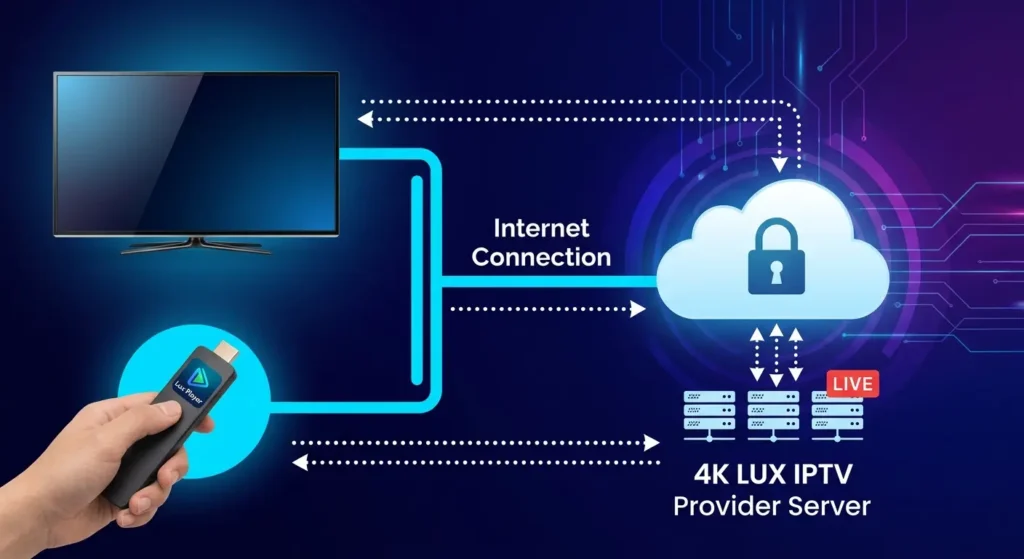
Understanding how to connect an IPTV service to Lux Player requires knowing the exact difference between the media application itself and your streaming provider. Many users download Lux Player expecting immediate access to live television channels, sports, and movies, only to be met with a blank login screen asking for a Provider ID, an M3U URL, or Xtream Codes credentials.
This guide explains exactly what Lux Player is, how it processes streaming data, and how to set it up on compatible devices like Amazon Firesticks, Android TV boxes, and smart TVs. It also covers the critical difference between application licenses and streaming service subscriptions, alongside a deep dive into troubleshooting common playback, login, and network errors.
Part 1: Understanding Lux Player and IPTV Architecture
What Is Lux Player?
Lux Player is a dedicated media streaming application designed specifically to play content provided by third-party IPTV (Internet Protocol Television) services. Out of the box, Lux Player does not include any pre-loaded live TV channels, movies, or series. It is an entirely empty media interface.
To understand how it works, compare it to a web browser like Chrome or Safari. A web browser is useless without websites to visit. Similarly, Lux Player is simply the “browser” for IPTV; to watch anything, you must connect a separate, active IPTV subscription.
The application is highly regarded for its clean graphical user interface (GUI), robust support for Electronic Program Guides (EPG), and efficient categorization systems that separate live TV from Video on Demand (VOD) content like movies and series. Depending on the operating system, it is optimized to decode high-definition and 4K video formats and handle large playlist connections seamlessly.
How Lux Player and IPTV Work Together
Search engines frequently process queries like “IPTV for Lux Player” or “IPTV that uses Lux Player.” These searches imply that the player itself is a broadcasting network. The reality relies on a two-part ecosystem:
- The Client (Lux Player): The software installed on your television, streaming stick, or computer. It decodes the incoming video stream, renders the visual user interface, displays the TV guide, and organizes the channel categories.
- The Server (Your IPTV Provider): The external hosting company that maintains the live channels, manages the video servers, stores the on-demand content, and authorizes your access.
When an IPTV service is considered “compatible with Lux Player,” it simply means the provider issues subscription credentials in a format that the application is programmed to read. A high-quality streaming provider like [suspicious link removed] will supply the specific credentials—usually a server URL, username, and password—necessary to bridge the gap between the player interface and the broadcast server.
Part 2: Playlist Formats and Login Methods
Before you can set up the application, you need to understand the type of credentials your IPTV provider has given you. Lux Player, like most modern IPTV applications, generally supports three primary methods of importing a playlist.
1. The Provider ID Method
Many customized or platform-specific versions of Lux Player utilize a simplified login system known as a Provider ID. Instead of asking the user to type out a long, complicated web address, the IPTV service gives the user a short, unique numerical or alphabetical code. When you enter this Provider ID into Lux Player, the app automatically communicates with a central database to retrieve the correct server URL. You then enter your standard username and password. This method drastically reduces typing errors, especially on devices where you must type using a television remote.
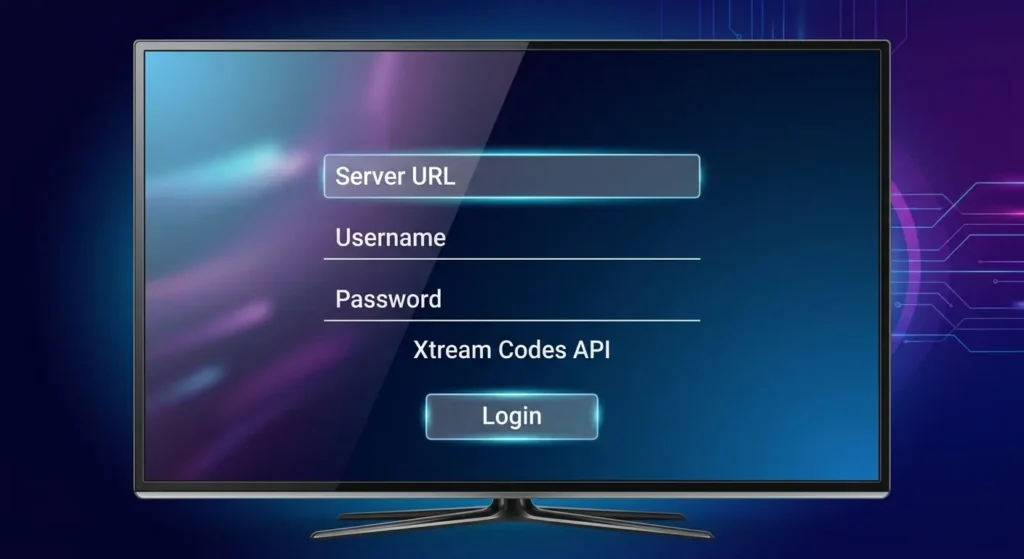
2. Xtream Codes API
If your version of Lux Player asks for Xtream Codes, this is highly beneficial. Xtream Codes API is currently the most stable and efficient way to connect an IPTV player to a server. It requires three distinct pieces of information:
- Server URL / Host: (e.g.,
http://live-server.com:8080) - Username: (e.g.,
User1234) - Password: (e.g.,
Pass5678)
Instead of downloading a massive text file containing every single channel link, Xtream Codes allows Lux Player to communicate dynamically with the server. The player only loads the category lists and EPG data, pulling the actual video stream only when you click on a channel. This results in faster loading times, less memory usage on your device, and immediate synchronization if your provider adds or removes channels.
3. M3U URLs
An M3U is the legacy format for IPTV playlists. Your provider will send you a very long web link (often ending in .m3u or .m3u8). This link points to a massive text file containing the direct streaming address for every single channel, movie, and TV show in your package. While almost universally supported, M3U links can be problematic on low-end hardware. Because the player has to download and parse the entire list (which can contain over 100,000 lines of text) every time it updates, it can cause older smart TVs or basic streaming sticks to freeze or crash during the initial loading phase.
Part 3: Device Compatibility and Installation Guides
The installation process for Lux Player varies significantly depending on the hardware ecosystem you are using. Below are the specific steps for the most common streaming devices.
Setting Up Lux Player on Amazon Firestick and Fire TV
Because Amazon operates a closed ecosystem, its official Appstore does not always carry every independent IPTV application. Setting up Lux Player on a Fire TV device usually requires “sideloading” the Android version (APK file).
Step 1: Prepare the Firestick for Sideloading
- From the Firestick home screen, click the Find magnifying glass and search for Downloader.
- Install the Downloader application (it has an orange icon).
- Navigate back to the home screen, then click the Settings gear icon on the far right.
- Select My Fire TV.
- Select Developer Options.
- Note: If you do not see Developer Options, click on “About,” highlight your Fire TV device name, and click the center button on your remote exactly 7 times to unlock developer mode.
- Click on Install Unknown Apps (or “Apps from Unknown Sources” on older models).
- Find the Downloader app in the list and turn it ON.
Step 2: Install the Application
- Open the Downloader app.
- In the URL bar, enter the direct APK link or the specific Downloader shortcode provided by your IPTV service.
- Click Go. The file will begin downloading.
- Once downloaded, the Firestick will prompt you to install. Click Install.
- After installation, delete the APK file to save storage space on your device.
If you are using an Apple TV or are interested in exploring alternative interfaces that might be natively available on Amazon, read our comprehensive guide on the best IPTV apps for Firestick and Smart TV ecosystems.
Setting Up Lux Player on Android TV and Google TV
Devices like the Nvidia Shield, Chromecast with Google TV, ONN 4K Streaming Box, and Android-powered televisions (like Sony and Hisense) offer a much more straightforward process because they have full access to the Google Play Store environment.
- Navigate to the Google Play Store on your Android TV home screen.
- Use the search function (or voice search) to look for “Lux Player.”
- If the official app appears, click Install.
- If the app is geo-blocked or unavailable in your specific region’s Play Store, you can use the exact same Downloader sideloading method described in the Firestick section above, as Android TV shares the same underlying architecture.
Setting Up Lux Player on Smart TVs (LG and Samsung)
Operating systems like LG’s WebOS and Samsung’s Tizen are entirely different from Android. You cannot install APK files on these televisions.
- LG WebOS: Open the LG Content Store and search for Lux Player. If the developer has published a WebOS version in your region, it will install directly.
- Samsung Tizen: Open the Samsung App Store. App availability on Samsung is notoriously strict regarding IPTV players. If Lux Player is not visible, it is not officially supported on your model. In this scenario, the most practical solution is to purchase an external Android TV box or Firestick and plug it into your Samsung TV’s HDMI port.
Setting Up Lux Player on Windows PC
Lux Player has a dedicated ecosystem for Windows, which is highly beneficial for users who want to manage multiple playlists or watch TV on their desktop.
- Open the Microsoft Store on your Windows 10 or 11 computer.
- Search for “Lux Player.”
- Click Get or Install.
- The Windows version is uniquely optimized for mouse-and-keyboard navigation and often supports multi-screen setups.
Part 4: Adding Your IPTV Service to the Player
Once the application is successfully installed on your device of choice, you must link your streaming subscription. Your provider will have sent you a welcome email or direct message containing your specific credentials.
If Using the Provider ID Method:
- Open Lux Player.
- Select the Provider ID login option.
- Carefully enter the unique code supplied by your service.
- Enter your Username and Password.
- Click Login.
If Using Xtream Codes:
- Open Lux Player and select Add Playlist or Login with Xtream Codes.
- Playlist Name: This is just a nickname. You can type “My TV” or the name of your provider.
- Server URL: Type the exact URL provided. Pay strict attention to the protocol (
http://vshttps://) and the port number at the end (e.g.,:8080). If you miss a colon or a slash, it will fail. - Username: Enter your username (watch out for auto-capitalization on TV remotes).
- Password: Enter your password.
- Click Add User or Login.
The app will display a loading screen while it downloads the channel categories. This initial sync can take anywhere from 30 seconds to a few minutes depending on the size of your provider’s library.
Part 5: Navigating the User Interface
A major reason users prefer dedicated apps like Lux Player over generic media players (like VLC) is the way it organizes content. Once logged in, you will typically see three main sections:
Live TV
This section houses the live broadcasting channels. Rather than presenting a single, unmanageable list of 10,000 channels, the application categorizes them—usually by country, language, or genre (e.g., UK Sports, US News, Documentaries). You can navigate through these folders using your remote’s directional pad.
Video on Demand (VOD)
This area is split into Movies and Series. The VOD section functions similarly to Netflix or Prime Video. It pulls poster artwork, IMDb ratings, and plot summaries directly from the IPTV server. For Series, it organizes the content logically by Season and Episode.
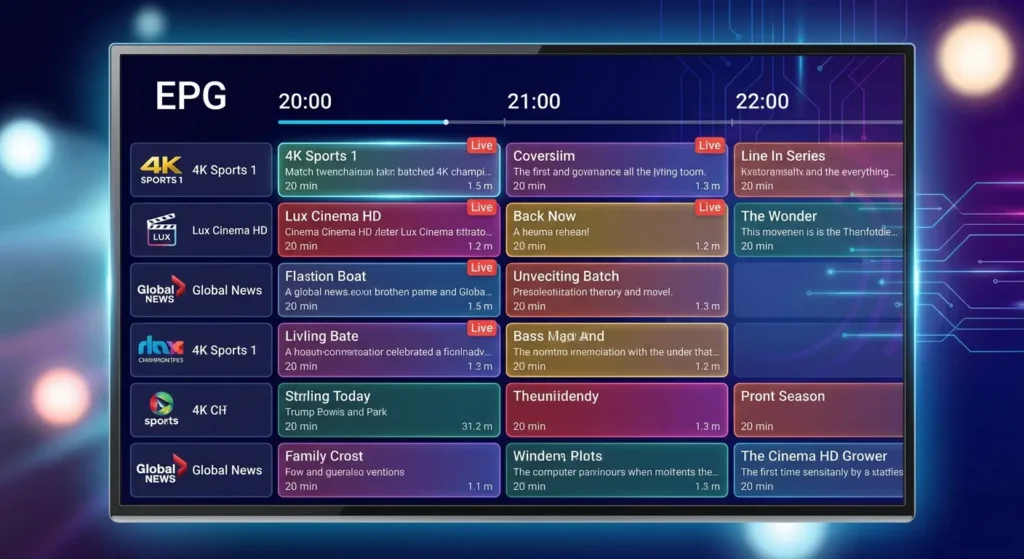
Electronic Program Guide (EPG)
The EPG is the digital TV guide that shows you what is currently playing and what is coming up next. The EPG is heavily dependent on the IPTV service, not the player. The player simply displays the data the server sends. If your EPG is blank, it means either the server is currently not sending the guide data, or the player has not yet completed its synchronization process.
Favorites Management
Scrolling through thousands of channels daily is tedious. Lux Player allows you to highlight a channel and hold down the “Select/OK” button to add it to a Favorites folder. Setting up your Favorites list on day one is highly recommended for a smoother viewing experience.
Part 6: Subscription Confusion Clarified
There is significant confusion in the IPTV community regarding billing, because users must differentiate between the software’s cost and the streaming service’s cost.
1. The Lux Player Application Fee
Depending on the specific version and the platform, Lux Player itself may require a standalone fee. For example, some desktop or universal versions offer a free 7-day trial, after which the app’s MAC address must be activated via the developer’s website for a one-time fee. This fee pays the software developers who coded the user interface. Paying this app activation fee does not give you any television channels.
2. The IPTV Service Subscription
This is the recurring subscription you pay to your actual streaming provider for access to the live channels, sports feeds, and VOD libraries. This fee pays for server hosting, bandwidth, and content management.
Paying for an IPTV service does not automatically waive a premium app’s activation fee, unless your provider utilizes a customized, pre-activated version of the app. Conversely, buying a “lifetime” app license does not give you lifetime TV channels.
If your screen displays a message stating “Account Expired” or “Playlist Not Authorized,” you likely need to renew your Lux IPTV subscription with your streaming provider, rather than trying to update or pay for the application itself.
Part 7: Advanced Troubleshooting & Error Resolution
If you experience issues during setup or daily use, the root cause could stem from the application, your hardware, your home network, or the external IPTV server. Here is how to diagnose and fix the most common problems.
Login Failures and Invalid Credentials
If you are immediately rejected at the login screen:
- Check for Typos: This is the cause 90% of the time. Server URLs must be exact. Passwords are case-sensitive. Check for spaces automatically added at the end of words by mobile or TV keyboards.
- Subscription Status: Verify with your provider that your account has not expired and has not been locked.
- VPN/IP Restrictions: Some IPTV providers use geo-locking or lock your account to the IP address you first signed in with. If you are using a Virtual Private Network (VPN) or traveling, the server may block the login attempt.
Playlist Loads but Channels are Blank or Missing
If the app accepts your login and you see category folders, but clicking a channel results in a black screen:
- Server Maintenance: Your provider’s specific channel server may be temporarily down.
- Update the Playlist: Go to the app’s settings and look for an option to “Refresh Playlist” or “Update Channels.” Providers frequently change underlying stream URLs; if your app is relying on old data, the stream will fail.
- Clear App Cache: On Android/Firestick devices, go to device Settings > Applications > Lux Player > Clear Cache. This forces the app to download a fresh copy of the channel database.
Audio/Video Synchronization Issues (Lip Sync)
If the audio does not match the mouth movements on the screen, this is usually a hardware decoding issue.
- Inside Lux Player settings, look for “Player Engine” or “Hardware Decoding.”
- Toggle Hardware Decoding (HW) to Software Decoding (SW), or vice versa. Different devices handle video compression codecs (like H.264 or HEVC/H.265) differently.
App Crashing and Freezing
Smart TVs and older Firesticks have very limited RAM (memory). Parsing a playlist with 150,000 VOD titles can overwhelm the device, causing Lux Player to crash directly to the home screen.
- Ask your IPTV provider if they can reduce the size of your playlist on their end (e.g., removing VOD categories for countries you do not watch).
- Restart your device completely by unplugging it from the power wall outlet for 60 seconds to clear the system memory.
Part 8: Conquering Buffering & Network Optimization
Buffering—the endless spinning circle—is the most common complaint with any IPTV setup. While it is easy to blame the player or the provider, the issue often resides in the local network environment. To ensure the best performance on Lux Player, address the following areas:
Use a Wired Ethernet Connection
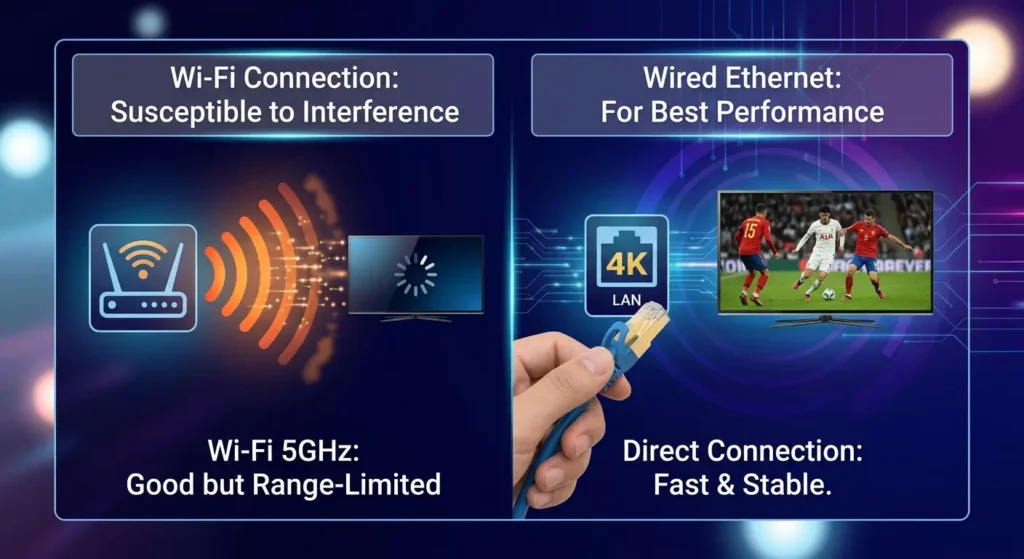
Wi-Fi is convenient, but it is susceptible to interference from walls, microwaves, and neighboring routers. Wi-Fi also experiences “packet loss” which streaming video cannot easily recover from. If possible, connect your television or streaming box directly to your internet router using an Ethernet cable.
A fast, wired connection is absolutely critical when attempting to stream high-bandwidth, live sporting events with zero delay, such as watching the 2026 FIFA World Cup in 4K.
Understand the 5GHz vs. 2.4GHz Wi-Fi Rules
If you must use Wi-Fi, check which band your device is connected to.
- 2.4GHz Wi-Fi: Reaches further through walls but has much slower top speeds and is highly congested.
- 5GHz Wi-Fi: Offers massive speeds capable of handling uncompressed 4K streams, but has a very short range. Ensure your streaming device is connected to the 5GHz network and is located reasonably close to the router.
Diagnose ISP Throttling
Sometimes, Internet Service Providers (ISPs) deliberately slow down high-bandwidth video traffic or specifically target known IPTV server routing. If your general internet speed test shows 500 Mbps, but Lux Player buffers every 10 seconds, you may be experiencing throttling or bad ISP routing.
- The Solution: Use a reputable VPN service. A VPN encrypts your internet traffic, hiding the nature of the data and its destination from your ISP. This prevents the ISP from artificially slowing down the video stream and often forces a more direct route to the IPTV server.
Manage Local Network Congestion
If someone else in the house is downloading large video game updates, torrenting files, or uploading large videos to the cloud, it will consume your network’s bandwidth allocation. Ensure your network is relatively clear when trying to stream live TV.
7. Suggested Internal Links and Placement
- [suspicious link removed] — Place in the “How Lux Player and IPTV Work Together” section. (Anchor text: 4K LUX IPTV)
- best IPTV apps — Place at the end of the “Setting Up Lux Player on Amazon Firestick” section. (Anchor text: best IPTV apps)
- Lux IPTV subscription — Place in the “Subscription Confusion Clarified” section. (Anchor text: Lux IPTV subscription)
- 2026 FIFA World Cup in 4K — Place in the “Use a Wired Ethernet Connection” section. (Anchor text: 2026 FIFA World Cup in 4K)
8. FAQ Section
What is a Provider ID for Lux Player? A Provider ID is a short, unique code generated by an IPTV service that links their specific server details to the Lux Player app. This simplifies the login process so you only need to enter the ID, followed by your username and password, instead of typing a long, complicated server URL using a remote control.
Is Lux Player free to use? The pricing model depends on the platform and version. The Windows app, for example, offers a free demo but requires a paid subscription to fully unlock and connect your own playlist. Other platforms may allow free downloads but require a valid Provider ID from an active, paid IPTV service to function. Always verify if the app itself requires MAC address activation.
Can I use any IPTV service with Lux Player? Yes, you can use any service that provides compatible login credentials, such as a designated Provider ID, Xtream Codes API, or an M3U link, provided the specific version of the app you downloaded supports that input method. Most premium services support Xtream Codes.
Why does Lux Player say my subscription is expired? This usually means your IPTV service subscription—the service providing the channels—has run out. You need to renew your streaming plan with your IPTV provider, not the app developer. Once your provider extends your account on their server, the app will automatically allow you to log back in.
How do I fix constant buffering on Lux Player? First, restart your router and your streaming device. If possible, switch from Wi-Fi to a direct Ethernet connection. If the problem persists across all channels while your general home network remains fast, it may be a routing issue, ISP throttling, or heavy server load on your IPTV provider’s end. Using a VPN can often bypass ISP throttling.
Why are there no channels showing up on my Lux Player? Lux Player is strictly a media interface and does not include any content by default. You must connect an active IPTV subscription for channels to appear. If you have already logged in and it is blank, refresh the playlist in the app settings, check your internet connection, or contact your provider to ensure their servers are currently online.
What is the difference between an M3U and Xtream Codes login? An M3U is a very long web URL that contains a massive text file of your entire playlist. Xtream Codes breaks the login into three parts: a server URL, username, and password. Xtream Codes allows the player to communicate with the server dynamically, which loads channels much faster, uses less memory, and updates more reliably than forcing the device to parse a giant M3U text file.
Can I install Lux Player on my Roku? While some independent IPTV apps briefly appear in the Roku Channel Store, Roku’s operating system strictly prohibits third-party IPTV players. Apps are frequently removed. If you rely on IPTV, it is highly recommended to use an Android TV device or an Amazon Firestick instead of Roku.
Why is the TV Guide (EPG) blank? The Electronic Program Guide is provided by the IPTV server, not the app. If it is blank, either the app hasn’t finished syncing, the provider is updating their guide data, or the specific channel does not have guide data assigned to it. You can usually force an update by going into the player settings and clicking “Refresh EPG.”
Does Lux Player support 4K streaming? Yes, Lux Player’s video engine is capable of decoding 4K streams. However, successful 4K playback depends entirely on two factors: your streaming device must have hardware capable of 4K output, and your IPTV provider must actually broadcast the channel or movie in 4K resolution.