
Lux Player Setup Guide: How to Install and Configure IPTV
Configuring a media player correctly is the foundation of a smooth, high-definition streaming experience. Lux Player has emerged as a premier media player application across smart TV platforms, streaming sticks, and desktop computers due to its fast loading speeds, clean interface, and remote-friendly navigation.
However, because Lux Player operates strictly as a video engine without hosting or bundling any content, setting it up requires pairing the application with an external IPTV service.
Whether you are configuring Lux Player for the first time on a Samsung Smart TV or Firestick, uploading a playlist via Device ID, or attempting to resolve a stubborn playlist loading error, this comprehensive tutorial will guide you through every step of the process.
What You Need Before Setting Up Lux Player
Before launching Lux Player and entering your streaming details, ensure you have gathered all necessary hardware, software, and account prerequisites. Preparing these items ahead of time prevents initial connection failures and avoids redundant setup steps.
       [Lux Player Application]  <--->  [Upload Portal / App Interface]
                                             |
                                   (Device ID or Login Credentials)
                                             |
                                 [IPTV Provider Server]
1. Compatible Hardware Platform
Lux Player natively supports a wide range of operating systems. Verify that your hardware meets the minimum platform requirements:
- Samsung Smart TVs: Tizen OS (2017 models and newer).
- LG Smart TVs: webOS platform (supported versions available in the LG Content Store).
- Titan OS Smart TVs: Select Philips, AOC, and JVC smart televisions running Titan OS.
- Amazon Fire TV Devices: Fire TV Stick (all modern generations), Fire TV Cube, and Fire TV Edition smart TVs.
- Android Devices: Android TV boxes, Google TV dongles, Nvidia Shield, and Android mobile phones or tablets.
- Windows PCs: Windows 10 or Windows 11 desktop and laptop computers.
2. An Active IPTV Service Account
Lux Player is purely a playback interface and does not include any channels, movies, or TV series. You must obtain an active subscription or trial from a compatible provider. If you are comparing service tiers or evaluating streaming packages, review our detailed Lux IPTV subscription guide for complete information on channel packages, 4K stream access, and account limits.
3. Valid Connection Credentials
Depending on how you connect your service to Lux Player, your provider must supply one of the following two credential sets:
- Device ID / Web Upload Method: A direct M3U playlist URL provided by your service, paired with the unique Device ID generated on your TV screen by the Lux Player app.
- Xtream Codes API Credentials: A Server URL (including protocol and port, such as [http://example.com:8080]
(http://example.com:8080)), a Username, and a Password.
4. Optimized Network Connection
High-definition and 4K UHD video streams demand consistent network throughput and low packet loss. A minimum internet speed of 25 Mbps is recommended for HD streams, while 4K streaming requires 50 Mbps or higher. Where possible, use a physical Ethernet cable connection. If using Wi-Fi, connect your device to a 5 GHz frequency band rather than a congested 2.4 GHz network.
Understanding Lux Player Connection Architecture
Before proceeding to installation, it is helpful to understand how Lux Player handles playlists. Unlike older media players that required users to manually type 100-character web links using a handheld TV remote control, Lux Player offers two primary setup architecture flows:
  +-----------------------------------------------------------------------+
|                         CONNECTION ARCHITECTURES                      |
+------------------------------------+----------------------------------+
|      METHOD A: WEB PORTAL UPLOAD   |   METHOD B: DIRECT APP LOGIN     |
+------------------------------------+----------------------------------+
| 1. Install app on TV / Device      | 1. Install app on TV / Device    |
| 2. Obtain unique Device ID         | 2. Select Xtream Codes / Login   |
| 3. Visit portal on Phone / PC      | 3. Enter Username & Password     |
| 4. Link M3U URL to Device ID       | 4. Enter full Server URL         |
| 5. Reload app to stream            | 5. Connect and stream directly   |
+------------------------------------+----------------------------------+
- Web Portal Device Linking (Web Upload): You open Lux Player on your Smart TV to generate a temporary or permanent Device ID. You then visit the management portal on a smartphone or computer web browser, enter the Device ID, paste your long M3U playlist URL, and press save. The playlist syncs automatically to your TV.
- Direct In-App Xtream Codes Login: On supported versions (such as custom mobile/Android builds or direct login screens), you select Add User or Xtream Codes API inside the app menu and directly enter your Server URL, Username, and Password using the on-screen keyboard.
To learn more about how different IPTV playback apps handle playlist integration and hardware decoding, check out our guide to the best IPTV 4K apps for Firestick and Smart TVs.
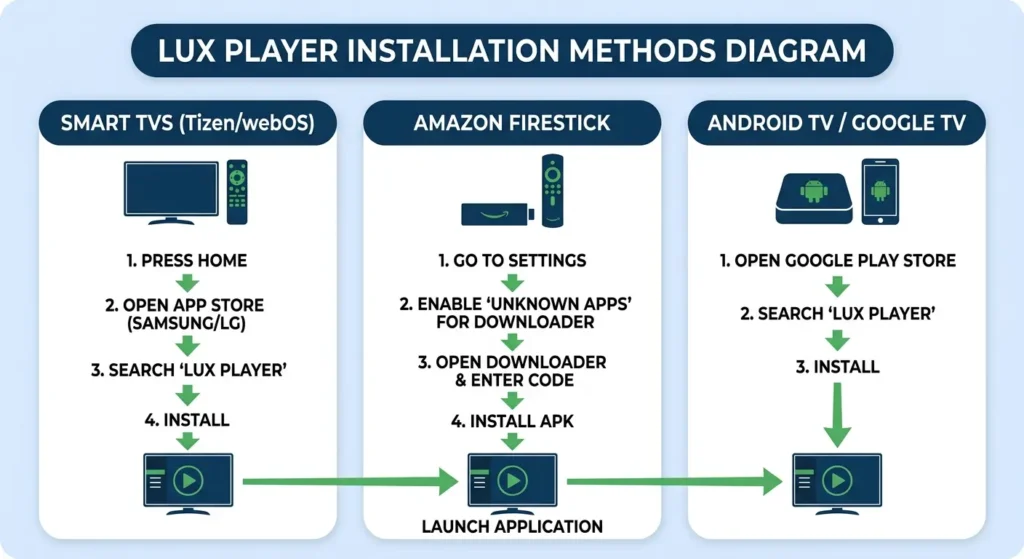
How to Install Lux Player Across Supported Devices
Because Lux Player is built for multiple operating systems, installation steps differ depending on your hardware platform. Follow the specific instructions below for your primary streaming device.
                    [Choose Platform Installation]
                                |
      +-------------------------+-------------------------+
      |                         |                         |
[Smart TV Store]        [Amazon Firestick]        [Android / Windows]
 (Samsung / LG)          (Downloader App)         (Google Play / Direct)
1. Installation on Samsung Smart TVs (Tizen OS)
- Turn on your Samsung Smart TV and press the Home button on your remote control to open the smart hub menu.
- Navigate to and select Apps.
- Select the Search icon (magnifying glass) in the top-right corner of the store interface.
- Type Lux Player into the search bar using the on-screen keyboard.
- Select Lux Player from the app results and click Install.
- Once the installation completes, click Open or select Add to Home for fast access.
Note on Samsung Compatibility: Lux Player supports Samsung models running Tizen OS from 2017 onward. If the application does not appear in search results, verify your television’s software version in Settings > Support > Software Update.
2. Installation on LG Smart TVs (webOS)
- Press the Home button on your LG Magic Remote or standard remote control.
- Launch the LG Content Store (or Apps section on newer webOS builds).
- Click the Search icon at the top of the screen.
- Input Lux Player into the search field and initiate the search.
- Select the application card and click Install.
- Allow the installation to finish, then launch the app directly from your main app launcher ribbon.
3. Installation on Amazon Fire TV & Firestick Devices
Since application distribution on Amazon devices can vary by region, you can install Lux Player either directly through the Amazon Appstore or via the Downloader utility.
Option A: Direct Installation (Amazon Appstore)
- From the Fire TV home menu, navigate to Find and select Search.
- Type Lux Player into the search field.
- Select the official application under Apps & Games and click Get or Download.
Option B: Sideloading via Downloader App
If the app is unavailable in your regional Amazon Appstore, use the verified Sideload method:
- Go to Settings (gear icon) on your Fire TV home screen.
- Select My Fire TV (or Device & Software).
- Choose Developer Options. (Note: If Developer Options is hidden, go to About, highlight your Fire TV device name, and click the center Select button 7 times rapidly until a notification confirms Developer Mode is enabled).
- Select Install Unknown Apps (or Apps from Unknown Sources) and toggle the status for Downloader to ON.
- Return to the home screen, open Find > Search, search for Downloader, and install it.
- Launch Downloader, grant permission to access files, and navigate to the URL bar.
- Enter the official Lux Player download code or APK link provided by your provider or the official portal (e.g., Downloader shortcode).
- Click Go, wait for the installation package (APK) to download, and click Install when prompted.
- Once completed, select Done, delete the setup APK file to save Firestick storage space, and open Lux Player from your app menu.
4. Installation on Android TV, Google TV & Android Mobile
- Open the Google Play Store on your Android TV device, Smart TV box, or phone.
- In the search bar, type Lux Player.
- Locate the official application, tap or click Install, and wait for the download process to complete.
- Launch the app directly from your device launcher.
5. Installation on Windows PCs
- Visit the official Lux Player portal (luxplayer.app) or launch the Microsoft Store.
- Download the Windows desktop installer executable (.exe or Store package).
- Run the setup file, follow the installation prompts, and launch the Lux Player application on your desktop or laptop.
How to Set Up Lux Player Step by Step
Once you have installed the application, you must complete the initial configuration to import your streaming channels, Electronic Program Guide (EPG), and VOD categories. Select the workflow below based on the setup method provided by your IPTV supplier.
       +-------------------------------------------------------+

       |           LUX PLAYER STEP-BY-STEP FLOW                |
       +-------------------------------------------------------+

       | Step 1: Launch Application on your Device             |
       | Step 2: Note the On-Screen Device ID                  |
       | Step 3: Open Upload Portal (luxplayer.app/upload)     |
       | Step 4: Enter Device ID & Provider Playlist URL       |
       | Step 5: Save, Submit & Reload Lux Player              |
       | Step 6: Verify Channels & Test Playback               |
       +-------------------------------------------------------+
Method 1: Connecting via Device ID & Web Upload Portal (Recommended for Smart TVs)
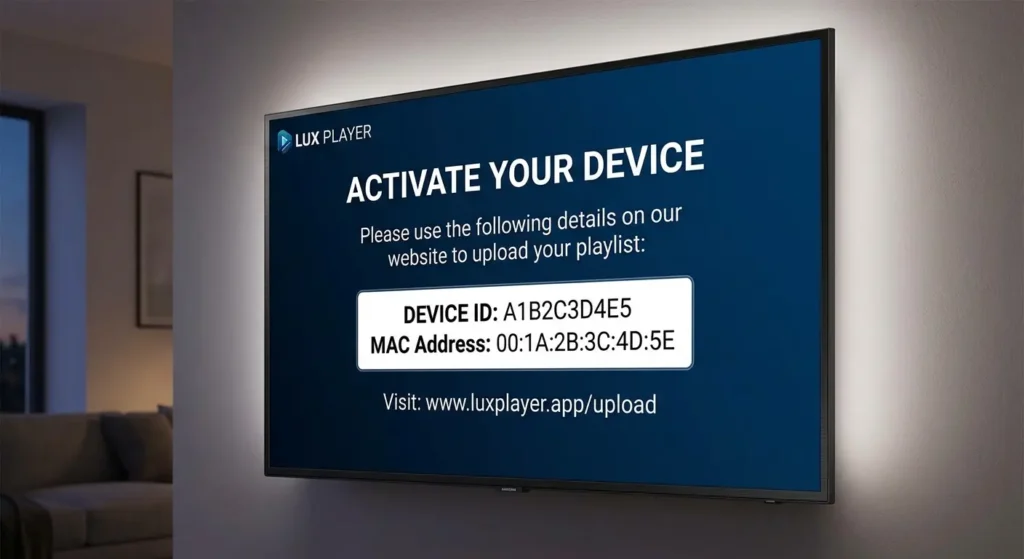
This is the standard setup process for Samsung, LG, Titan OS, and default Smart TV installations.
Step 1: Open Lux Player on Your Television
Launch the application on your TV. Upon first opening, the app will bypass empty screens and display an initial launch screen containing a Device ID.
Important Connection Note: Each hardware interface creates its own distinct identifier. If you switch your Smart TV connection from Wi-Fi to an Ethernet cable (or vice versa), your TV’s network MAC address shifts, generating a new Device ID. Always verify the active Device ID shown on screen under your current network connection.
Step 2: Record the On-Screen Information
Keep Lux Player open on your television screen. Write down or take a photo of the Device ID string shown.
Step 3: Access the Management Portal on Your Phone or PC
Open a web browser on your smartphone, tablet, or computer and navigate to the official upload web portal: luxplayer.app/upload.
Step 4: Enter Your Device Details and Playlist Link
On the upload webpage, complete the submission fields:
- Device ID: Input the exact alpha-numeric code displayed on your TV screen.
- Playlist Name / Note: Enter a label (e.g., “Lux IPTV 4K”).
- Playlist URL / M3U Link: Paste the complete M3U URL provided in your IPTV subscription account email or customer dashboard.
- Click Save or Upload Playlist.
Step 5: Reload Lux Player on Your Device
Return to your television. Click the Reload, Refresh, or Restart button inside the Lux Player interface. The application will connect to the server, parse the content index, and instantly load your channel groups, live EPG grid, movies, and TV series.
Method 2: Direct Xtream Codes API Login (In-App Setup)
If your version of Lux Player or custom provider app supports direct credentials input, follow these steps:
- Launch Lux Player and select Add New User or Add Playlist.
- Choose Xtream Codes API as your login type.
- In the Any Name / Playlist Name field, type a label for your service.
- In the Username field, enter your assigned account username (case-sensitive).
- In the Password field, enter your account password carefully without extra spaces.
- In the Server URL field, enter the complete server address, including http:// or https:// and the port number (for example: [http://line.luxiptv.com:8080](http://line.luxiptv.com:8080)).
- Click Add User or Log In.
- Allow the application 10–30 seconds to import the channel list, EPG timeline, and video-on-demand databases.
Configuring Basic Settings for Optimal Performance
Once your playlist is imported, spending a few minutes adjusting Lux Player’s internal settings ensures stable playback and prevents audio/video sync errors. Navigate to the Settings gear icon in the app interface to configure these parameters:
+-------------------------------------------------------------------------+

|                  RECOMMENDED LUX PLAYER APP SETTINGS                    |
+----------------------+--------------------------+-----------------------+

| SETTING CATEGORY     | DEFAULT VALUE            | RECOMMENDED VALUE     |
+----------------------+--------------------------+-----------------------+

| Video Decoder        | Software / System Default| Hardware (HW / HW+)   |
| Buffer Size          | Small (1 Second)         | Medium / High (3-5s)  |
| EPG Update Frequency | Every Launch             | Every 12 Hours        |
| Channel Preview      | Enabled                  | Enabled (Smart TVs)   |
| Aspect Ratio         | Auto                     | Original / 16:9       |
+----------------------+--------------------------+-----------------------+- Video Decoder Settings: Select Hardware Decoding (HW) or HW+ if stream playback stutters or drops frames. Hardware acceleration uses your streaming device’s physical GPU chip to process high-bitrate 4K and 60fps video streams smoothly.
- Buffer Size / Stream Preload: If your internet connection experiences minor latency spikes, increase the playback buffer setting from standard to High or 3–5 Seconds. This creates a video buffer to prevent mid-stream freezing.
- EPG Refresh Rate: Set your Electronic Program Guide to update automatically every 12 hours rather than every single minute. This reduces background network traffic and prevents menu lag on lower-spec smart TVs.
- Preview Mode: Lux Player features a channel preview mode that lets you browse live channels while your current stream continues playing in a side window. Keep this feature enabled for faster channel toggling.
For an in-depth look at how player settings interact with server connectivity and line speeds, read our comprehensive Lux Player IPTV guide.
Device-Specific Considerations & Tips
While Lux Player’s core layout remains consistent, performance and menu navigation vary depending on the operating system.
               [DEVICE-SPECIFIC OPTIMIZATION MATRIX]
                                 |
     +---------------------------+---------------------------+

     |                           |                           |
[Smart TVs (Tizen/webOS)]   [Fire TV Devices]       [Android / Windows]
 - Close background apps     - Clear cache regularly - Enable HW Acceleration
 - Use wired Ethernet        - Free 1GB storage      - Update system OS
 - Force-close via TV menu   - Use 5GHz Wi-Fi band   - Toggle custom decoders
1. Smart TVs (Samsung Tizen & LG webOS)
- System Memory Management: Smart TVs possess less RAM than dedicated streaming devices. If Lux Player feels sluggish when opening large channel lists, force-close other TV background apps or perform a deep power cycle (unplug the TV power cable for 30 seconds).
- Network Interface Matching: Remember that plugging an Ethernet cable into your TV changes your device’s MAC address. Always verify your Device ID after changing your network cable setup.
2. Amazon Firestick & Fire TV Devices
- Storage Space Management: Firestick models can experience slowdowns when internal storage drops below 1 GB. Periodically go to Settings > Applications > Manage Installed Applications > Lux Player and select Clear Cache.
- Remote Shortcuts: Use the Menu button (three horizontal lines) on your Amazon Fire TV remote while highlighting any channel to add it to your Favorites folder for quick access.
3. Windows Desktop & Mobile Devices
- Mouse vs Remote Navigation: The desktop app supports full mouse control, dragging, and hotkeys. Ensure your computer’s graphics drivers are up to date to prevent hardware rendering artifacts during 4K playback.
How to Verify IPTV Compatibility Before Setup
Setup issues are often caused by a mismatch between account configurations and application expectations rather than an app bug. Before troubleshooting, confirm the following service parameters with your IPTV provider:
- Active Lines and Max Allowed Connections: Ensure your IPTV plan supports the number of devices currently connected. If your plan allows 1 device connection and you launch Lux Player on a second device without closing the first, streams will fail to load or throw connection errors.
- Server Protocol Support: Confirm that your provider allows third-party player connections via M3U URLs or Xtream Codes API.
- Account Activation Status: Confirm that your subscription or trial period has been activated on the server side and that your expiration date has not passed.
- Geographic Restrictions or ISP Locks: Some internet service providers deploy DNS filtering or block default streaming ports during peak viewing times. Check whether your provider recommends a compatible VPN configuration.
Common Lux Player Setup Problems & Practical Fixes
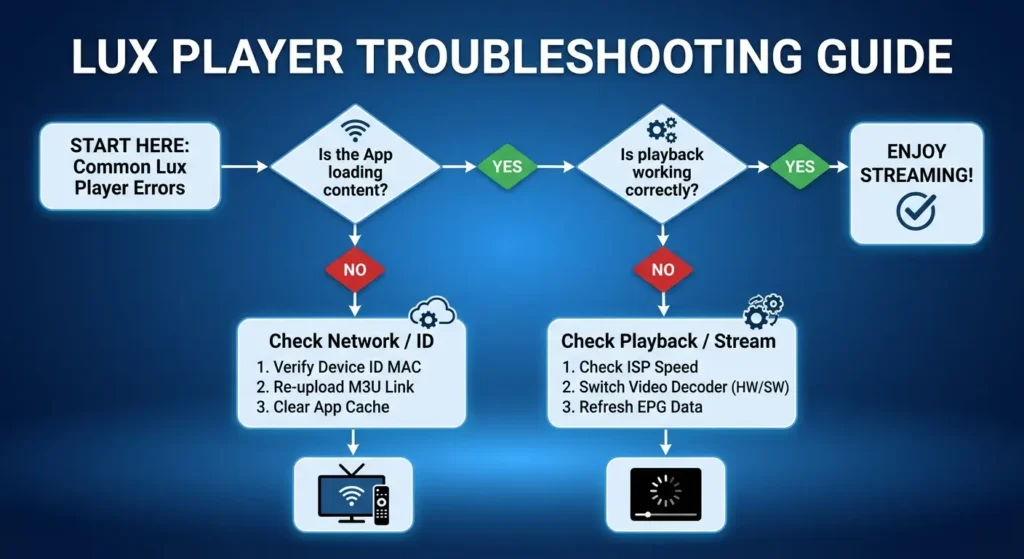
When setup does not go as planned, use this structured troubleshooting matrix to identify root causes and implement targeted fixes quickly.
[Troubleshooting Flowchart]
                                |
             Is the App opening and loading content?
               /                               \
             [NO]                             [YES]

              |                                 |
     Check Network / ID                 Check Playback / Stream
  - Verify Device ID MAC             - Check ISP Speed / Throttling
  - Re-upload M3U Link               - Switch Video Decoder (HW/SW)
- Clear App Cache / Data - Refresh EPG Data| Problem Description | Root Cause Analysis | Step-by-Step Fix |
| App Displays “Invalid Device ID” or Portal Rejects Code | Device ID misread, or TV changed network interface from Wi-Fi to Ethernet. | Re-open Lux Player on your TV. Verify the Device ID string displayed under your active connection type. Enter the exact string at luxplayer.app/upload. |
| Login Details Rejected / Xtream Codes Error | Case-sensitive typo in username/password, extra trailing spaces, or missing http://. | Carefully re-enter your details. Check for invisible spaces inserted by mobile or TV touch keyboards. Confirm your server URL format with your provider. |
| Playlist Stuck at 0% / Infinite Loading Screen | Massive playlist size, slow internet latency, or temporary server response lag. | Wait up to 2 minutes on first load. If unresolved, restart your router and TV. Ask your provider to filter unnecessary channel groups to reduce playlist size. |
| Channels Missing or Category Lists Empty | EPG sync interrupted or cache corrupted. | Open Lux Player Settings, select Clear Cache, and click Force Refresh Playlist. |
| Video Plays with Sound but Black Screen (or Stuttering) | Hardware video decoding failure on TV chipset. | Go to Settings > Playback, change the Video Decoder from Hardware (HW) to Software (SW) or System Player, and restart the stream. |
| Error Screen: “Connection Failed / Server Unreachable” | Provider server maintenance, ISP port blocking, or active firewall filtering. | Test your network connection by switching your TV temporarily to a mobile phone Wi-Fi hotspot. If it streams on mobile data, contact your ISP or enable a VPN. |
How to Tell Whether the Problem Is the Player or the IPTV Service
Isolating the source of an issue saves time and prevents unnecessary app reinstalls. Follow this simple 3-step isolation test:
                      [ISOLATION DIAGNOSTIC TEST]
                                   |
         +-------------------------+-------------------------+

         |                                                   |
 [Test 1: Web Browser / Alternate App]               [Test 2: Network Hotspot]
  - Try account on phone or PC                        - Connect TV to Mobile Hotspot
  - If fails everywhere -> Provider issue             - If works on Hotspot -> ISP block
  - If works elsewhere -> Lux Player setting          - If still fails -> Account / Server
Test 1: The Alternative App / Device Test
Install your provider credentials onto a second device or generic media player (e.g., VLC Media Player on a laptop or mobile phone).
- Result A: If the stream fails to connect or play on the second device as well, the issue lies with your IPTV provider server or your account status.
- Result B: If the stream plays perfectly on the second device, the issue is isolated to your Lux Player settings or TV configuration.
Test 2: The Mobile Hotspot Network Test
Disconnect your streaming device or Smart TV from your home Wi-Fi network. Enable a 4G/5G personal hotspot on your smartphone and connect your TV to the hotspot.
- Result A: If Lux Player loads channels instantly on the mobile hotspot, your primary Internet Service Provider (ISP) is blocking streaming traffic or filtering server DNS requests.
- Result B: If the app still fails to connect on mobile data, your account may be expired, locked, or experiencing server downtime.
Test 3: The Demo Mode Interface Test
Lux Player includes a built-in Demo Mode. Launch the application and select Try Demo.
- Result A: If Demo Mode loads sample streams and menus smoothly, your Lux Player application software is functioning correctly.
- Result B: If Demo Mode crashes or freezes, your hardware streaming device requires a system update, storage cleanup, or application reinstallation.
Frequently Asked Questions
How do I set up Lux Player for IPTV?
Download and install Lux Player from your device’s official app store or via Downloader. Open the app to view your Device ID, go to luxplayer.app/upload on your phone or PC browser, enter your Device ID along with your IPTV provider’s M3U playlist link, save your entry, and reload the app on your TV.
What information do I need to connect my account?
You need either a valid M3U playlist URL (to pair with your Device ID on the web portal) or an Xtream Codes API set consisting of a Server URL, Username, and Password supplied by your service provider.
Why is my playlist not loading or stuck at 0%?
This typically occurs due to a typo in your server URL, an expired subscription, server maintenance on your provider’s end, or ISP connection filtering. Verify your login details, test your network on a mobile hotspot, and check with your service provider.
Why are my channels or category lists missing?
Missing channels usually indicate a sync interruption or cached data error. Go to Lux Player Settings, clear the app cache, and select Force Refresh Playlist to re-download the channel structure.
Can I use Lux Player on Firestick devices?
Yes. Lux Player can be installed on Firestick devices either directly through the Amazon Appstore or by using the Downloader application to sideload the official installer package.
Does Lux Player require its own separate subscription or activation fee?
Lux Player is an independent media player app. While the app offers a free Demo Mode and trial options, activation fees for the player software itself are completely separate from your third-party IPTV content provider subscription. Lux Player does not provide or host any TV channels.
What should I do if login details fail repeatedly?
Double-check for case sensitivity and trailing spaces inserted by auto-correct keyboards. Ensure the Server URL includes http:// or https:// along with the designated port number. Verify that your account subscription remains active.
What should I do if setup succeeds but streams keep buffering?
Verify that your internet connection delivers at least 25–50 Mbps download speed. Connect your device via an Ethernet cable where possible, switch your video decoder in settings from Software to Hardware (HW), or increase your playback buffer size to 3–5 seconds.