
Ultra-high-definition television has transformed home entertainment, delivering four times the pixel count of standard 1080p Full HD. For IPTV users viewing live sports, movies, and international channels through streaming devices like Amazon Firesticks, Smart TVs, and Android boxes, 4K resolution provides exceptional visual clarity.
However, delivering crisp 8 million-pixel frames in real-time places heavy demands on home networks. A frequent point of frustration occurs when a high-speed internet plan still results in stuttering video, dropped frames, or persistent buffering wheels.
Understanding how internet speed, bandwidth allocation, compression codecs, and local hardware interact is essential for achieving smooth, high-quality 4K streaming. This guide breaks down the real technical requirements behind 4K IPTV, analyzes how network variables impact playback, and provides practical methods to evaluate and optimize your connection.
How Much Internet Speed Do You Need for 4K Streaming?
When evaluating speed requirements for 4K streaming, manufacturers and streaming platforms generally recommend download speeds ranging from 15 Mbps to 25 Mbps per concurrent 4K stream.
However, treating these numbers as absolute guarantees can be misleading. A baseline recommendation represents the minimum continuous throughput required under ideal laboratory conditions. In a real-world home environment, data delivery fluctuates due to network congestion, background tasks, Wi-Fi interference, and server-side routing variations.
To ensure uninterrupted 4K playback, security margins must be factored into your calculations:
- The Absolute Minimum (15–20 Mbps): Often cited by major subscription video-on-demand (SVOD) platforms for compressed 4K HEVC streams. Playback may drop to lower resolutions if network throughput dips even momentarily.
- The Recommended Target (25–50 Mbps): Provides a safe operational buffer for high-bitrate 4K IPTV streams, accommodating temporary speed drops without triggering adaptive bitrate downscaling.
- The Multi-Device Household (100+ Mbps): Necessary when multiple family members stream video, play online games, or conduct video calls simultaneously.
HD vs. Full HD vs. 4K: Bandwidth Requirements
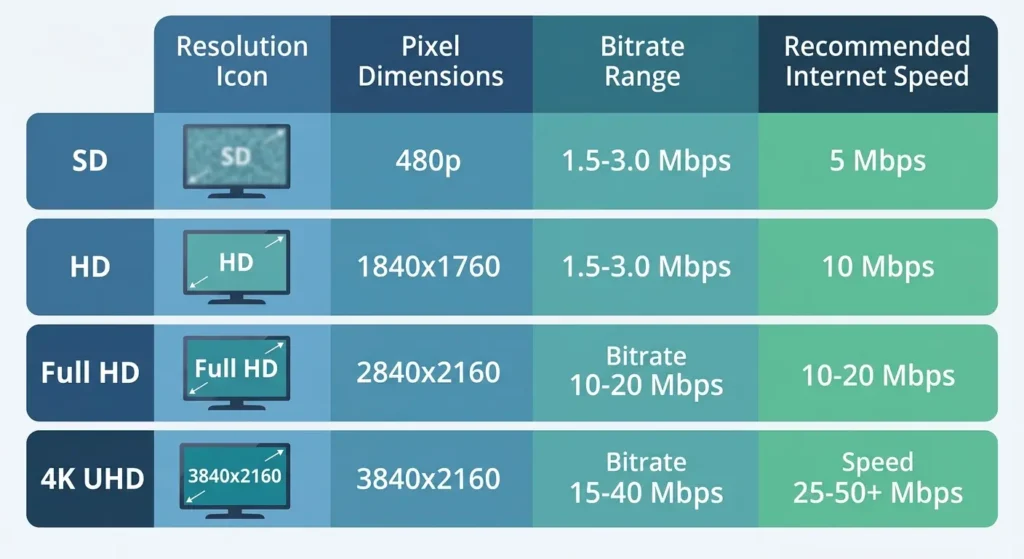
Video quality is fundamentally defined by resolution, but resolution alone does not determine bandwidth consumption. The compression efficiency, frame rate (e.g., 30fps vs. 60fps for fast-moving sports), and encoding format dictate how many megabits per second a video stream actually demands.
| Resolution | Pixel Dimensions | Typical Bitrate Range | Recommended Minimum Speed | Common Use Case |
| Standard Definition (SD) | 720 x 480 | 1.5 Mbps – 3.0 Mbps | 5 Mbps | Legacy broadcasts, low-bandwidth connections |
| High Definition (HD / 720p) | 1280 x 720 | 3.0 Mbps – 5.0 Mbps | 8 Mbps | Basic streaming, older mobile feeds |
| Full HD (1080p) | 1920 x 1080 | 5.0 Mbps – 10.0 Mbps | 15 Mbps | Standard cable replacement, crisp modern streaming |
| 4K Ultra HD (2160p) | 3840 x 2160 | 15.0 Mbps – 40.0 Mbps | 25 Mbps – 50 Mbps | Premium sports, cinematic movies, high-end IPTV |
Why Bitrate Matters More Than Resolution
Two streams broadcasting at 3,840 x 2,160 pixels can have vastly different bandwidth requirements. A heavily compressed 4K stream using modern codecs might glide smoothly at 18 Mbps, while a live high-framerate 4K sports broadcast encoded with older parameters may demand 35 Mbps or more to prevent artifacts and motion blur.
What Factors Influence IPTV Bandwidth Usage?
Unlike subscription-on-demand services that pre-buffer minutes of video ahead of time, live IPTV relies on continuous, real-time data packets. Several technical factors influence how much network capacity an IPTV stream consumes:
- Video Codecs (H.264 vs. HEVC / H.265 / AV1): Modern streaming apps utilize advanced video compression standards like HEVC (H.265). HEVC compresses 4K video efficiently, reducing required bandwidth by roughly 40% to 50% compared to older H.264 AVC codecs without sacrificing visual fidelity.
- Frame Rate (FPS): Standard cinematic movies are mastered at 24 frames per second, requiring less data. Live sports and fast-action broadcasts often transmit at 50 or 60 frames per second, doubling the amount of visual data processed every second and increasing bandwidth demand.
- Audio Channels: Multi-channel surround sound formats (such as Dolby Atmos or 5.1 audio) add extra data weight to the overall stream compared to standard stereo tracks.
- Provider Infrastructure: IPTV services distribute content via Content Delivery Networks (CDNs). The proximity of the CDN server to your location directly impacts packet delivery efficiency.
Megabits vs. Megabytes: Understanding Speed Versus Data Consumption
A frequent point of confusion among consumers involves mistaking network throughput speed with data storage or monthly transfer caps.
- Megabits per second (Mbps): Measures speed and throughput—how fast data travels across your network at any given second. This determines whether your connection can handle a live 4K stream right now.
- Megabytes per second (MB/s) & Gigabytes (GB): Measures file size and data volume. Because there are 8 bits in 1 byte, a 25 Mbps connection translates to a theoretical download capacity of 3.125 Megabytes per second.
Monthly Data Consumption Estimates
If your Internet Service Provider (ISP) enforces monthly data caps, continuous 4K streaming will consume allowance rapidly:
- 1 Hour of 4K Streaming: Consumes approximately 7 GB to 10 GB of data (depending on an average bitrate of 20 Mbps).
- 1 Hour of Full HD (1080p) Streaming: Consumes roughly 3 GB to 4 GB of data.
- Heavy Monthly Usage: Streaming 4K content for two hours daily over a month can accumulate between 400 GB and 600 GB of data usage.
How Many Devices Can Stream at Once?
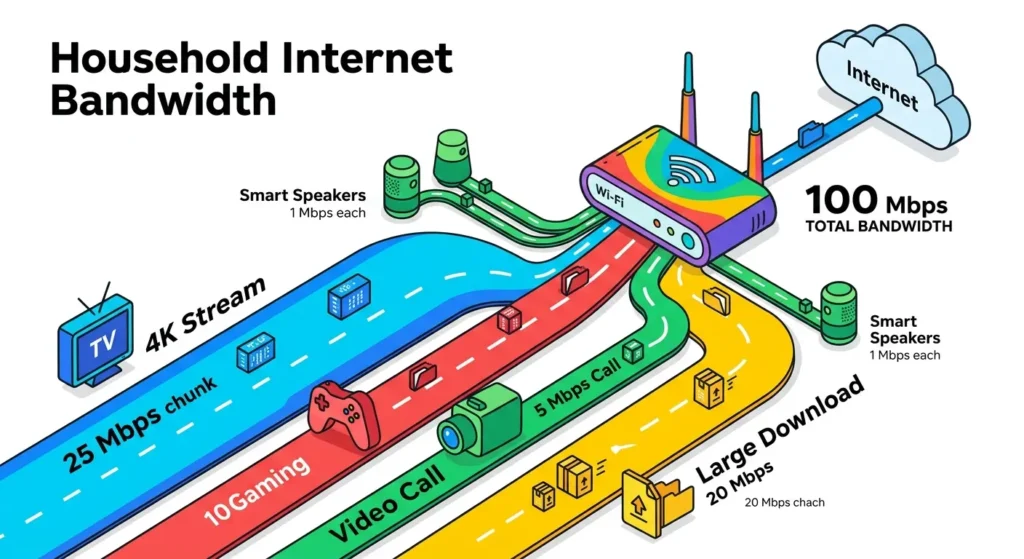
Home networks operate like multi-lane highways. When multiple devices share an internet connection, total bandwidth is divided among active tasks.
If you subscribe to a 100 Mbps internet plan, that capacity is shared across phones, tablets, smart home gadgets, background system updates, and streaming media players.
Simultaneous Activity Breakdown
- Single 4K Stream: Requires ~25 Mbps dedicated throughput.
- Two Simultaneous 4K Streams: Requires ~50 Mbps of stable, unthrottled bandwidth.
- Mixed Household Activity (4K Stream + Online Gaming + 1080p Video Call + Smart Home devices): Easily surpasses 60–80 Mbps of active network demand.
If your household engages in heavy concurrent usage, a nominal 50 Mbps internet plan may bottleneck when someone initiates a large console game download while you attempt to watch a live 4K sports event. For multi-user homes, internet packages starting at 150 Mbps to 300 Mbps provide a comfortable safety margin.
Tip: For detailed application configurations and playlist setup across various devices, consult ourLux Player setup guide.
Is Wi-Fi Enough for 4K IPTV?
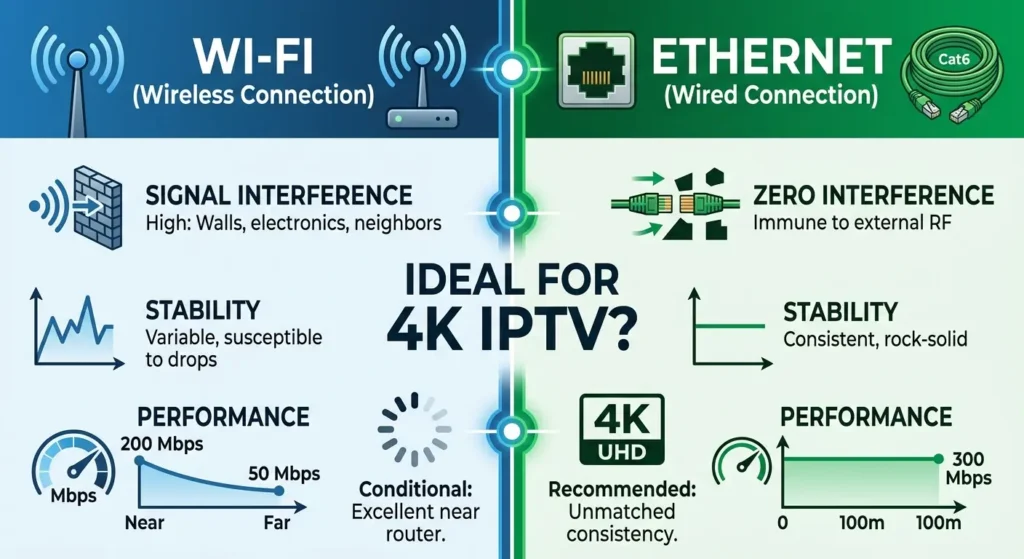
Wireless networks have evolved significantly with standards like Wi-Fi 6 and Wi-Fi 7, yet wireless connections remain inherently susceptible to environmental interference.
While a robust 5 GHz or 6 GHz Wi-Fi signal can easily deliver 100+ Mbps to a nearby streaming device, Wi-Fi performance degrades rapidly due to:
- Physical Obstructions: Concrete walls, thick plaster, metal framing, and large appliances absorb or reflect wireless signals.
- Distance: Signal strength drops exponentially the further your streaming device is from the wireless router.
- Network Congestion & Interference: Neighboring Wi-Fi networks operating on overlapping channels, Bluetooth devices, and microwave ovens create invisible radio frequency noise that causes packet loss.
- Band Switching: Dual-band routers frequently shift devices between 2.4 GHz (long range, lower speed, high congestion) and 5 GHz (shorter range, high speed) bands, causing momentary playback drops.
When Wi-Fi signals degrade, streaming apps drop video resolution or buffer. If your streaming box or Smart TV is located in another room or behind physical barriers, wireless instability is often the root cause of playback hiccups.
Ethernet vs. Wi-Fi: Which is Better for 4K Streaming?
For stationary devices like Smart TVs, Apple TVs, Android streaming boxes, or dedicated media hubs, a wired Ethernet connection (Cat5e or Cat6 cable) is superior to Wi-Fi.
Advantages of Wired Ethernet
- Zero RF Interference: Physical copper cables are immune to wireless congestion, walls, and household electrical interference.
- Consistent Latency and Jitter: Ethernet delivers rock-solid ping times and negligible packet loss, ensuring a steady stream of data packets arrives without micro-stutters.
- Maximum Throughput Utilization: Wired connections achieve closer to 100% of your subscribed ISP speed without overhead wireless degradation.
Limitations of Ethernet
While Ethernet cures local wireless instability, it cannot cure issues outside your home network. If an IPTV provider’s server is overloaded or your ISP is throttling traffic, plugging in an Ethernet cable will not bypass external routing bottlenecks. Furthermore, some streaming devices (like standard entry-level Firesticks) lack built-in Ethernet ports, requiring an optional USB-to-Ethernet adapter.
Why Does 4K Streaming Buffer Even with Fast Internet?
It is deeply frustrating to run a speed test showing 200 Mbps download speeds, only to watch an IPTV stream stutter or buffer endlessly. A high headline speed test does not guarantee flawless playback because internet speed tests measure peak throughput to the nearest local server, not the actual end-to-end path between you and your streaming source.
Primary causes of buffering despite fast internet include:
- Packet Loss and High Latency: Even if bandwidth is high, dropped data packets force your streaming player to pause and request re-transmissions.
- ISP Peering and Throttling: Some Internet Service Providers route international or streaming traffic inefficiently during peak evening hours, creating artificial congestion points.
- Provider-Side Server Load: If thousands of users connect to the same live event stream simultaneously, the streaming server’s capacity can saturate, causing universal buffering regardless of your home speed.
- Device Resource Constraints: Streaming devices (especially older streaming sticks with limited RAM and aging processors) struggle to decode high-bitrate 4K streams smoothly, leading to dropped frames that mimic network buffering.
- Background Apps: Unclosed applications running updates or syncing cloud backups in the background can saturate network bandwidth intermittently.
For a targeted breakdown of diagnosing and resolving playback stalls on specific hardware platforms, refer to our guide onIPTV buffering on Firestick.
How to Test Your Connection for 4K Streaming
Diagnosing whether your network is truly ready for 4K IPTV requires more than a casual glance at your bill. Follow this systematic testing process:
- Use a Reputable Speed Test: Visit a recognized speed testing tool (such as Ookla Speedtest or Fast.com) on a device connected to your home network.
- Test Near Your Streaming Device: Run tests as close as practical to your Smart TV or streaming box’s actual location to measure real-world Wi-Fi reception.
- Compare Wi-Fi and Ethernet: If possible, test your speed over Wi-Fi and compare it with a direct Ethernet connection to quantify wireless degradation.
- Test During Peak Hours: Run tests in the evening (between 7 PM and 10 PM) when neighborhood network congestion typically peaks.
- Account for Active Devices: Pause downloads and heavy household usage before testing to determine your raw maximum capacity, then test under normal household load.
- Evaluate Latency and Jitter: Look beyond download speed. A ping under 30ms and jitter under 5ms indicate a stable connection suitable for real-time live streaming.
Actionable Ways to Improve Your Connection
If your network falls short or suffers from intermittent instability, apply these improvements prioritized by cost and effort:
- 1. Restart Your Networking Hardware: Power cycle your modem and wireless router monthly to clear cache memory and reset routing tables.
- 2. Optimize Router Placement: Move your router out of cabinets, off the floor, and into an open, central location in your home, away from thick walls and electronic interference.
- 3. Switch to the 5 GHz Wi-Fi Band: If your router is dual-band, assign your streaming device to the 5 GHz band (or 6 GHz if using Wi-Fi 6E/7) to escape crowded 2.4 GHz traffic.
- 4. Clear Device Cache and Restart Streaming Apps: Clear cached app data on your Firestick or Android TV box to free up system memory. For help choosing optimal applications, explore our overview of the best IPTV 4K apps for Firestick and Smart TVs.
- 5. Connect via Ethernet: Use a wired cable or adapter for stationary streaming hardware to eliminate wireless variables entirely.
- 6. Contact Your ISP: If recurring latency spikes or speed drops persist despite local fixes, ask your provider to inspect your line health or check for node congestion in your neighborhood.
Frequently Asked Questions
Is 25 Mbps enough for 4K IPTV streaming?
Yes, 25 Mbps is generally the minimum benchmark recommended for a single 4K stream. However, if other household devices are active or your connection fluctuates, 40 to 50 Mbps provides a much more stable experience without buffering.
Why does my speed test show 150 Mbps, but 4K streams still lag?
A speed test measures bandwidth between your home and a nearby test server. Lag or buffering can still occur due to high packet loss, server-side congestion at your IPTV provider, ISP peering bottlenecks, or insufficient RAM/processing power on your streaming device.
Do I need to buy a faster internet plan for 4K?
Not necessarily. Many buffering issues stem from Wi-Fi interference, outdated router firmware, or local network congestion rather than an insufficient ISP speed package. Optimize your current setup before upgrading your plan.
Does 4K IPTV use more data than regular streaming?
Yes. 4K video consumes roughly 7 GB to 10 GB of data per hour, compared to about 3 GB per hour for Full HD (1080p). If you have a monthly data cap from your ISP, heavy 4K streaming will exhaust your allowance quickly.
Conclusion
Achieving flawless 4K IPTV streaming requires more than just subscribing to a high-tier internet plan. While maintaining a download speed of 25 Mbps to 50 Mbps per stream is essential, connection stability, modern video codecs, minimal packet loss, and robust local hardware play equally critical roles. By evaluating your network through structured testing, optimizing your Wi-Fi environment or switching to wired Ethernet, and understanding how household devices share bandwidth, you can eliminate frustrating stutters and enjoy pristine 4K entertainment.